Configuring Print Services
When managing printer IT infrastructure, you need to have a place to centrally manage all your printers.
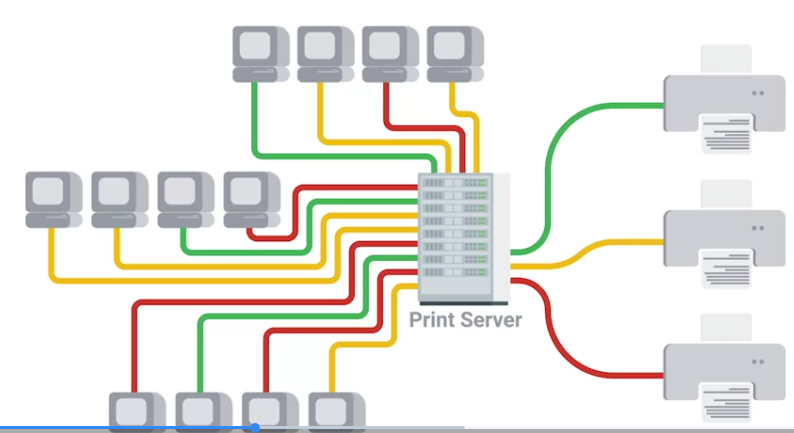 To set up a print server, all you have to do is install a print service on a server. Most server operating systems already come with the printer service readily available.
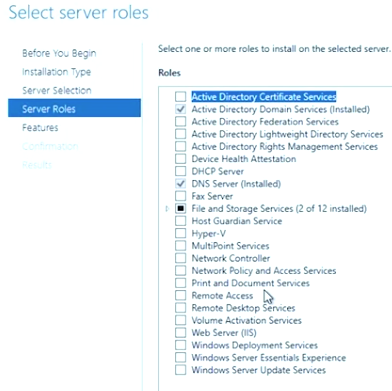
For example, let’s look at Windows, in the Windows Server operating system there’s a print and document services that can be enabled. All you have to do is add your network printed to the service and install the drivers for those printers
In Linux a common print server that usually pre installed on machines as CUPS or Common UNIX Printing System. When your print server is set up, you need to add the printer to the client machine. Just search by the printer server name and connect to the device and start printing.
Another way you can manage printers is by using a cloud service provider. This allows you to match your printers through a web browser. It also lets your users print through a web browser so no setup is involved on their machines.
Printing languages
When choosing a print driver or troubleshooting issues with one, it is important to know which printing language the printer and computer operating system are using. Printing languages describe images on a screen to a printing device, so the printed output matches what is on screen. Printing languages are also called page description languages. Two of the most common printing languages are Printer Control Language and PostScript.
Printing languages can be either device-dependent or device-independent. Device-dependent means both the printer and computer are responsible for creating parts of the printed data. Device-independent means that the computer is solely responsible for creating the printed data. It is helpful for IT to know if the printing languages used are device-dependent or independent as it can help them troubleshoot whether printing errors are occurring because of the driver on the computer or the printer’s hardware.
Printer Control Language (PCL)
Printer Control Language (PCL) is a printing language created by Hewlett-Packard that is used by many printer brands and computer operating systems. PCL is printing device-dependent because both the printer and computer are responsible for creating parts of the printed data. Because PCL is device-dependent, the output may not be the same on every printing device.
PostScript (PS)
PostScript was created by Adobe and is a printing language used by many printer brands but most commonly used in Macintosh systems. Unlike PCL, PostScript does not use the printer to create data. PostScript is device-independent, and the output is the same on any printer. If an error arises when PostScript is used, then it is usually an error with the driver on the computer.
Basic printer configuration settings
Configuration settings tell a printer how to complete a print job including the size, type of paper, number of sides, and use of color. IT professionals help employees change and select the correct settings for their document. The following are basic configuration settings that can be adjusted using printer settings.
-
Orientation is the direction in which a document is printed. The main options for most printers are portrait (vertical) and landscape (horizontal).
-
Print Quality refers to the level of detail that both the paper and the print settings are set to. The higher the DPI (Dots Per Inch), the higher the resolution or quality of the print.
-
Tray settings tell the printer which tray of paper to use for the print job. Different trays can hold different paper sizes and types. Telling the printer to select paper from the correct tray ensures that the document is printed as it was designed.
-
Duplex allows for printing on both sides of the paper. Printers can print information on one side (simplex) or both sides of the paper. Many brochures, booklets, and packets are printed on both sides to save paper.
For more information on how to update printer settings for high-quality printing see the article in the reference section below.
Sharing a printer on a network
Printers can be shared on a network allowing multiple computers to access one printer across the network instead of having to be wired to the computer directly. IT professionals maintain and set up networks that include shared printers. For more information on sharing printers on your network read the article in the reference section below.
Network scan services
Network scan services allow a printer with scanning capabilities to create a file of a scanned image and upload or send it to a location on the network or in the cloud, or attach the file to an email and send it. Employees often need IT support for ways to use this type of technology. The following network scan services can be used for fast file uploads or attachments.
-
Email scan service allows a document to be scanned directly from the printer to email.
-
Server Message Block (SMB) protocol allows a document to be a shared resource once scanned by the printer.
-
Cloud services enable a document to be scanned from the printer and uploaded directly to the cloud.
Printer security
Printer security protects access and tracks the activity of a print device. Printer security aims to ensure that only authorized users can use a printer. Setting up and monitoring proper security permissions falls under the job of an IT professional.
Some basic measures for limiting access to printers and tracking print activity are:
-
User authentication commonly requires a user to enter a username and password before completing the print job.
-
Badges are usually a physical card a user must scan at the printer to complete the print job.
-
Secured prints require a user to enter a user-created code at the printer to complete the print job.
-
Audit logs track users that have accessed the printer, including the date and time of use.
Key takeaways
IT support professionals are often responsible for printer management. It is helpful to know about printing languages, printer configuration, networking, and security.
-
Printer Control Language is device-dependent, while Postscript is device-independent.
-
Some basic printer configuration settings are orientation, print quality, tray settings, and duplex.
-
Having a printer on a network enables multiple users to share printers.
-
Network scan services allow a printer with scanning capabilities to create a file of a scanned image and upload or send it to a location on the network, on the cloud, or email.
-
Printers have security and tracking features such as user authentication, badges, secured print, and audit logs.
Resources for more information
For more information about software and driver downloads for specific brand devices, review the links below.
HP Customer Support - Software and Driver Downloads
Cannon Customer Support - Software and Driver Downloads
Xerox Customer Support - Software and Driver Downloads
Ricoh Customer Support - Software and Driver Downloads
HP - How to Update Printer Settings for the Highest Quality Printing
Microsoft Support - Share your network printer
Xerox - Scan a Document to an Email Address
HP Customer Support - Set up Scan to Network Folder
Xerox - Scan to Cloud or Enable Remote Destination
Printer technologies
Over time, many types of printing technologies have been developed. Here are some of the most common types:
Inkjet printersuse arrays of very small nozzles to spray ink onto the printing substrate. These are very versatile printers that can print onto a lot of different surfaces.
Laser printersuse a laser to draw an image in static electricity on a photosensitive drum. The statically charged image on the drum attracts a powdered pigment called toner, which is transferred onto the paper and fused in place!
Impact printerswork sort of like a typewriter. A dot-matrix printer, for example, has an array of small pins that press against the paper through an inked ribbon. Dot-matrix printers used to be very common, but now are only used in special situations. One example of this is when you need to print on carbon (or carbon-less) copy paper.
Thermal printersapply heat to special thermochromatic paper. Thermochromatic paper changes color when it is heated, so thermal printers don’t require any ink! Thermal printers are very commonly used as receipt printers.
3D printersdon’t apply an image to a substrate. 3D printers slowly layer small amounts of material at a time to create 3-dimensional objects! There are a lot of types of 3D printing technologies, and you need not only drivers, but other special software to build the instructions for your specific 3D printer.
Viewing your printers
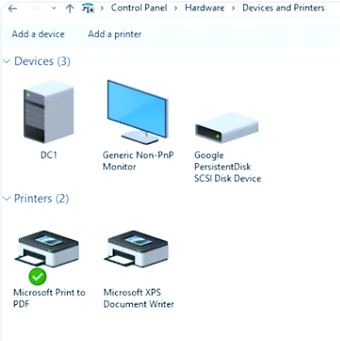
To see what printers are already installed in your operating system, navigate to the OS’s printer settings. You can also add new printers, and manage existing printers from there.
-
In Windows, you will go to one of two places, depending on the version of Windows that installed. You will go to either Settings > Devices > Printers & Scanners, or to Control Panel > Printers and Devices.
-
In MacOS, navigate to System Preferences > Printers & Scanners.
-
There are a lot of different utilities for configuring printer settings in Linux. Take a look at the documentation for your version of Linux to be sure. Just as an example, for one common distribution of Linux, Ubuntu, you will navigate to Activities > Printers.
Each printer in your OS has a print queue, or print spool. If you send multiple print jobs to a printer, those jobs will line up in the queue to be handled, one at a time. Print jobs can be reordered or cancelled while they are in the print queue.
Your operating system will have a default printer. If you only have one printer, then that will be the default printer. If you have multiple printers configured, then you can select one to be used, well, by default!
Installing a printer
Printers can be pretty complicated devices, with lots of settings. There are dozens of common printer brands and thousands of printer models. Your operating system has a printer service, and knows how to talk to many printers, but it might not know how to talk to your printer. Operating systems have generic printer device drivers that will work for many common styles of printers. Beyond this, major operating systems will also understand how to search catalogs of device drivers in order to find the correct driver for a given printer. If your operating system does not automatically locate a driver for the printer you are trying to install, then the best place to look is on the printer manufacturer’s support website. Remember, device drivers are specific to your operating system, so be sure to use the correct drivers for your OS.
One thing you may notice when you are looking at printer device drivers is that some printers can speak more than one page description language. The most common of these languages are PostScript (PS), and Printer Command Language (PCL). Some printers will work better with one language than another. Most of the time, whatever is default or recommended by the printer manufacturer is what you should go with. Sometimes, the applications that you are printing from will prefer one language over another. If your printer supports multiple languages and it is failing to print certain documents, or failing to print from certain applications, you might try a different language.
Virtual Printers
What do you do if there is an important document that you want to save, but you don’t need a paper copy? You can use a virtual printer. A virtual printer is a printer driver that looks like a real printer to the operating system, but instead of printing print jobs onto paper, it creates a file! Virtual printers have names like “Print to PDF”, or “Print to File”. You can use virtual printers to create documents like PDFsor XPS files, or just about any type of image file!
Printer Sharing
What if you have a printer attached to your computer, and you want to share that printer with someone who is using a different computer? You can! You can share your printer! When you share your printer, you are making it available to other computers as a shared printer. With a shared printer, other computers will send print jobs across the network to the computer that is attached to the printer. Take a look at these instructions on how to share your printer, and connect to the shared printer:
Network Printers
Some printers can be directly attached to the network without having to be shared by a computer’s operating system. These are standalone network printers. You can add network printers to your computers in a very similar way as a shared printer:
Watch out! Some network printers contain hard drives or other storage that are used to hold jobs in a print queue. This storage can end up holding on to some pretty sensitive information! Make sure to control access to this storage. Destroy the storage or securely delete any data from this storage before servicing, selling, or disposing of a network printer!
Print Servers
What if you have just a few printers, and a several people who need to share those printers? You might need a print server! Print servers work similarly to a local printer share, but on a larger scale. They can accept many print jobs at once, and will queue or spool the print jobs so they can be processed one at a time by the printer(s).