Managing Services in Linux
As a system administrator, you will need to know how to look at the status of a running service and how to stop, start, and restart running services. The exact way to do this will depend on the operating system you’re using. But the concepts are the same
Let’s look at a very simple service Network Time Protocol, NTP. Ubuntu installations include a daemon that runs on the machine and is in charge of synchronizing the clock using NTP. We can check that there’s an NTP Daemon running on this machine using the service command, service ntp status.
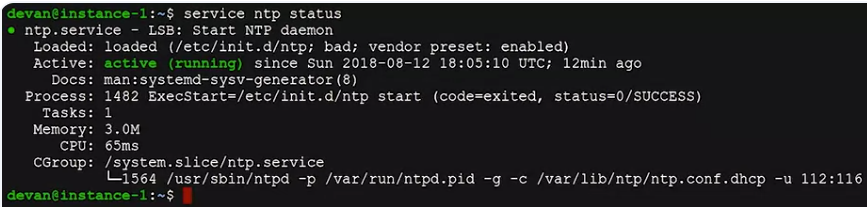 We can see that there is an NTP service and the system tells us it’s running.
 This service is keeping our clock on time without us even realizing it. If at any point it detects that the clock has drifted, it adjusts the time in a very small increment. It will add or remove 0.5 milliseconds per second until it reaches the desired time.
- It uses very small increments so that other services which depend on the clock to perform their tasks won’t be affected by a sudden adjustment of the time.
If the daemon detects the time has changed more than 128 milliseconds, it assumes that something else is going on and will not interfere. Let’s test this by manually modifying the date of the system to a date in the past.
Type in sudo date and give it a specified date, 2017-01-01 00:00:00. That specified date and Enter,
 and then type in date.
 We’ve set the date to January 1st, 2017 at 12:00 A.M. if we check the date after a few seconds, it will still be set to January 1st, 2017. A few seconds past midnight, it does not get adjusted. The NTP Daemon saw the change, but since it’s more than 128 millisecond threshold, it’s not adjusting the clock.
How do we make it catch up to the present? There’s an option in the NTP daemon that allows it to drastically adjust the clock when it’s starting.
- This is because the daemon is expected to start very early in the process when the machine is booting up.
- There shouldn’t be any time dependent services running at that point.
If we manually restart the service now, we’ll see that the date and time get adjusted.
Let’s type in sudo service ntp stop, date, sudo service ntp start, typing date, then Enter. We use the Stop action to stop the service and the Start action to start it back up.
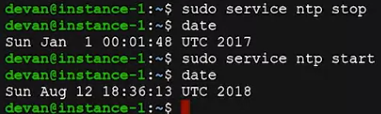 We use the sudo command to stop and start the service because any user can check the status of the service, but only an administrator can cause it to stop and start.
An alternative that’s available in most services is the restart action, which does a stop followed by a start.
First, let’s set the date back to January 1st, 2017 at 12:00 A.M, and then we’ll restart the NTP service. I’m typing sudo date, specify the time. 2017-01-01 00:00:00, hit Enter, then hit date, then hit sudo service ntp restart, then hit date.
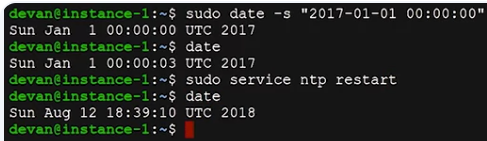 Now you’ve seen how to check the status, start, stop, and restart service in Linux.