Windows - Disk Usage
To check disk usage, you can open up the computer management utility then head to the disk management console.
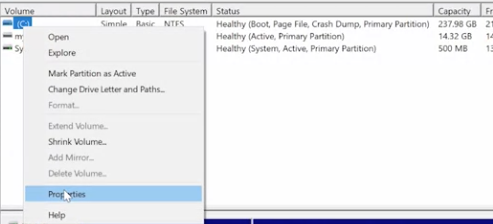
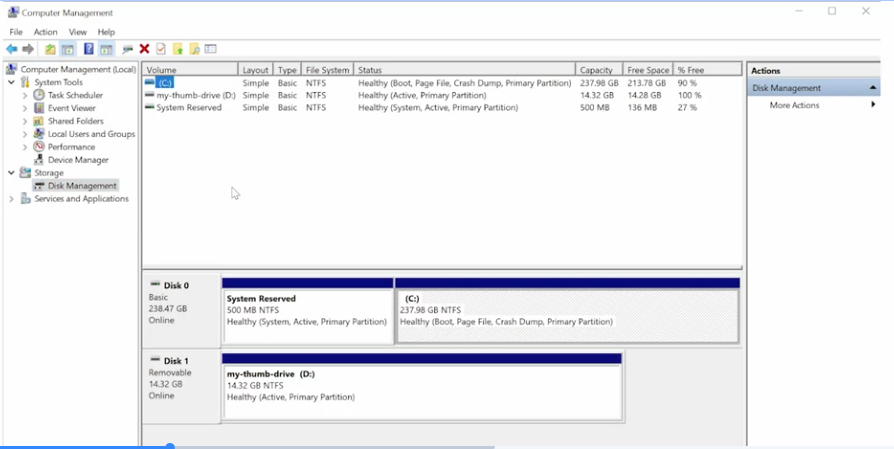 From there, you right-click on the partition you’re interested in and select properties.
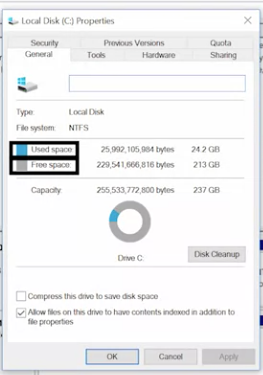
 This will bring up the general tab where you can see the used and free space on the drive.
 In addition to using this graphical user interface to check the disk usage, Windows provides a command line utility called disk usage as part of its sys internals tool offering that DU utility can print out the usage of a given disk and tell you how many files it has.
- It can be useful for creating scripts which might need text-based output instead of visual reports, like the pie chart and disk management.
On the same tab in the disk management console, you might notice a button that says disk cleanup.
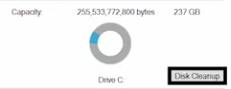 If you press this button, Windows will launch a program called clean manager.exe which will do a little housekeeping on your hard drive to try and free up some space.
- This housekeeping includes things like deleting temporary files, compressing old and rarely use files, cleaning up logs, and emptying the recycle bin.
The idea behind disk Defragmentation: A process of taking all the files stored on a given disk and reorganizing them into neighboring locations
- Having files ordered like this will make life easier for rotating hard drive disks that use an actuator arm to write to and read from a spinning disk. The head of the actuator arm will actually travel less to read the data it needs.
- less beneficial for SSDs For SSDs, the operating system can use a process called trim to reclaim unused portions of the solid-state disk. Defragmentation in Windows is handled as a scheduled task.
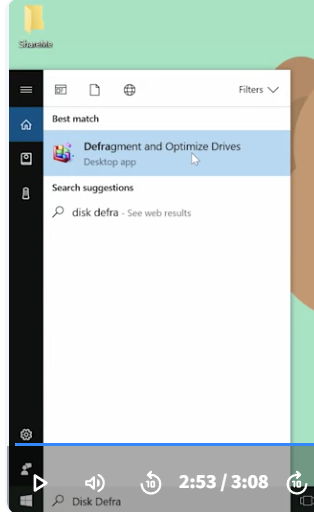
To kick off a manual defragmentation, open up the disk defragmenter tool bundled with the OS. Type disk defragmenter.
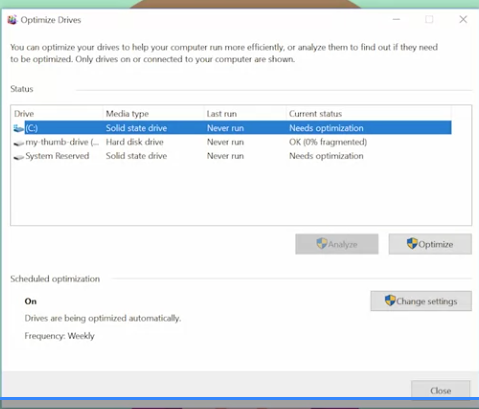
 When it launches, you’ll be given a list of disks which can be defragmented along with buttons to analyze the potential gains from running a defrag or defragmentation, and to run the defrag itself.
For more information about disk usage in Windows, check out the following links: Disk Usage, How to start Disk Cleanup by using the command line.