Linux - Reading Process Information
Now let’s talk about how to view the processes running on our system and Linux. We’ll be using the ps command. Let’s just go ahead and run that command with the -x flag and see what happens.
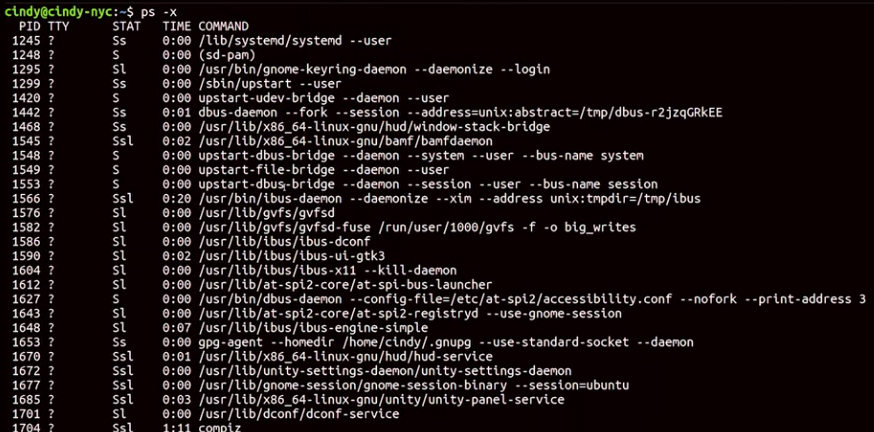 This shows you a snapshot of the current processes you have running on your system.
- PID = Process ID
- TTY = the terminal associated with the process
- STAT = process status
- R: Running, means the process is running or it’s waiting to run
- T: Stopped, meaning a process that’s been suspended.
- S: Interruptible sleep, meaning the task is waiting for an event to complete before it resumes.
- TIME = total CPU time that process has taken up
- COMMAND = This is the name of the command we’re running
Run this command, ps-ef. The e flag is used to get all processes, even the ones run by other users. The -f flag is for full, which shows you full details about a process

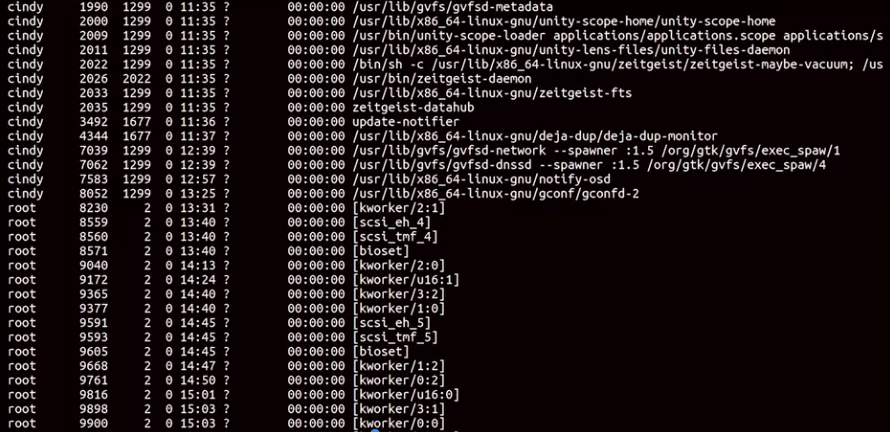
- UID = user ID of the person who launched the process.
- PID = Process ID
- PPID = Parent ID which launched the process
- C = # of children processes this process has
- S = start time of process
- TTY = terminal associated with process
- TIME = total CPU time that process has taken up
- CMD = This is the name of the command we’re running
What if we wanted to search through this output?
We will use the grep command.
 Remember everything in Linux is a file, even processes. To view the files that correspond to processes, we can look into the slash proc directory.
