Windows - Searching within Files
Ctrl+F
The settings we’re looking for in the Control Panel, but we can use the Start menu to find the settings we need faster. Open the Start menu and then type indexing, you’ll see the indexing options in your results of the search, click on that.
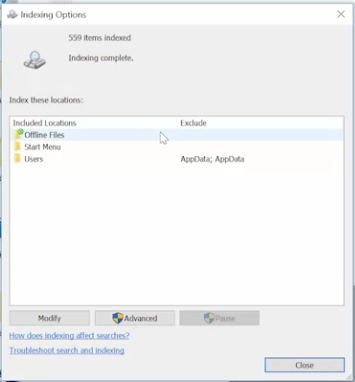
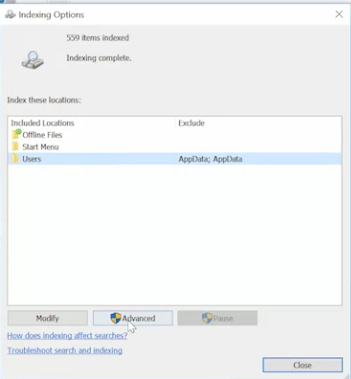
Now we want to change the settings for the user folder which is where all the home directories are stored. Select Users and then click Advanced.
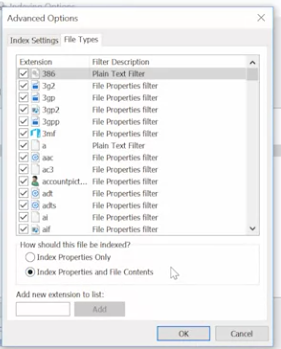
Now select the File Types tab and select Index Properties and File Contents, click Ok.
 Now close out of the indexing options. When you do this, the Windows Search Service will start to rebuild the index based on your new settings.
We can use Notepad++ as well

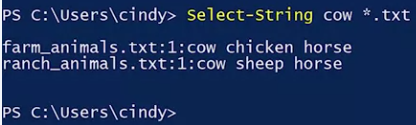
In PowerShell, we’re going to use the sls or select desk string command to find words or other strings of characters and files. You can think of strings as a way for the computer to represent text. The Select-String command lets you search for text that matches a pattern you provide. This could be a word, part of a word, a phrase or more complicated patterns that are described using a pattern matching language called regular expressions.
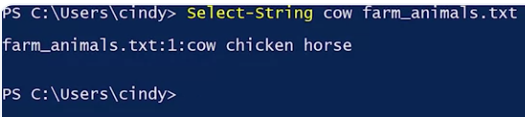
Excellent, if you wanted to search through several files in a directory, you can use pattern matching to select them. Remember the wildcard character asterisk for selecting all, we can use that here as well. Now we can see that it found farm animals and ranch animals.