Windows - Adding and Removing Users
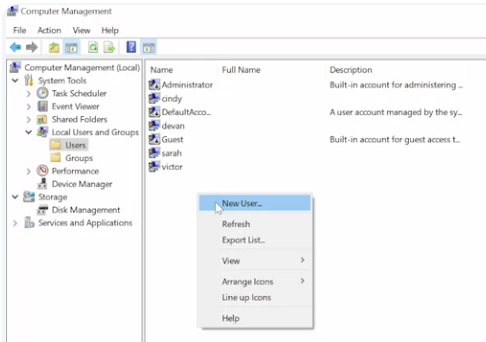
To add a user we’re going to go back to our computer management tool. Under local users and groups we’re going to right click and select new user.
 From here, it asked us to set a user name, a full name and a password
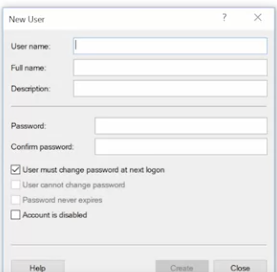 Remember, that in order to use good password setting practices, we set a default password and then make the user change that password when they log in
To remove a user we simply right click and select delete. This gives us a warning message that says user names are unique. And even if you delete the user and give them the exact same user name, they won’t be able to access their old resources. Once you confirm that you want to do that, just go ahead and delete it
Now, to net to add a new local user we simply use the slash add parameter. If we add the slash add parameter to the same command we used before, it instructs net to create the account. We can still use the asterisk for the password to be prompted to enter a password. Let’s test this out and create a new account for Andrea. So net user andrea * / add.
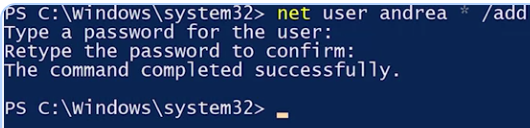 Now, let’s list the user accounts to be sure it worked. So Get-Local User.
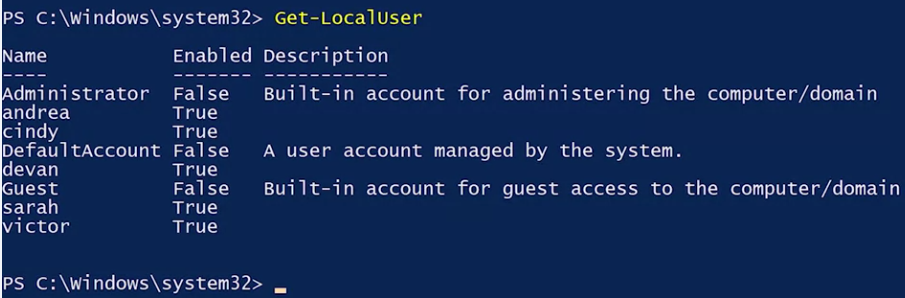 Now, there’s a small problem which you saw in the earlier lesson on passwords, this account is for Andrea but we know what the password is. We don’t want to know what the password is because that means we can log in as Andrea. We want to make sure the Andrea changes her password to something that we don’t know. So we’re going to flag her account as requiring a password change, using the slash log on password change, yes parameter.
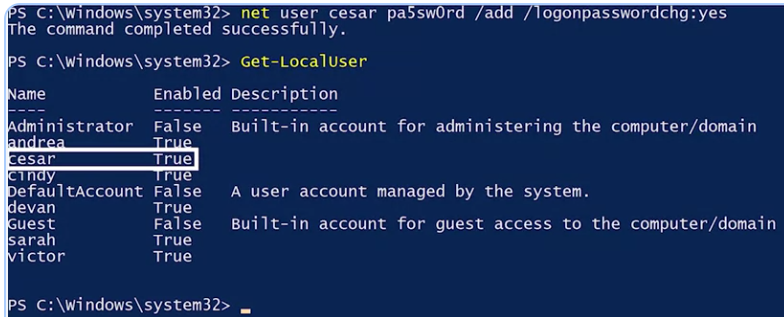
  You can actually combine these two commands that we ran to create a new account that requires a password change at first login. Let’s create an account for Casar. So net user casar at a password / add / logonpasswordchg:yes. Now, when we run the Get-LocalUser we should see both of our new accounts
All right, now let’s remove these accounts that we just created.
Let’s delete Andrea’s account. Net user andrea / delete. This will delete Andrea’s account

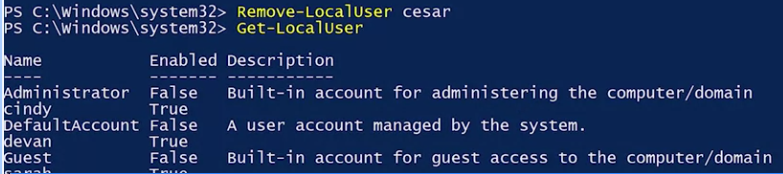
Using the Remove-LocalUser command, we can remove Cesar’s account.