Windows - Modifying Permissions
Let’s say I want to give access to another person in my family to view a folder with family pictures on the computer.
On my local Disk C, I have a folder called vacation pictures that I want to share with another user on my machine, Devan. To do that, I’m going to right-click on this folder, then go to properties
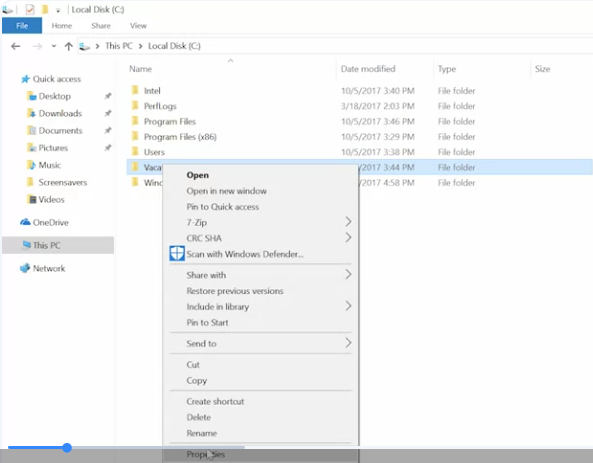
then the security tab. Now I can see an option to edit file permissions. I’m going to click on that.
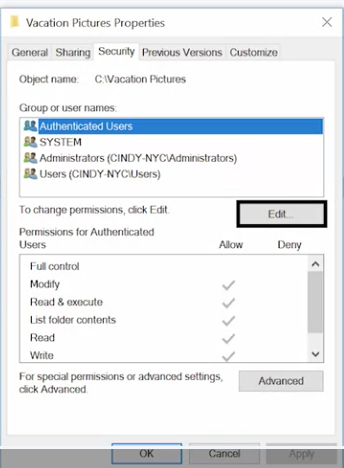
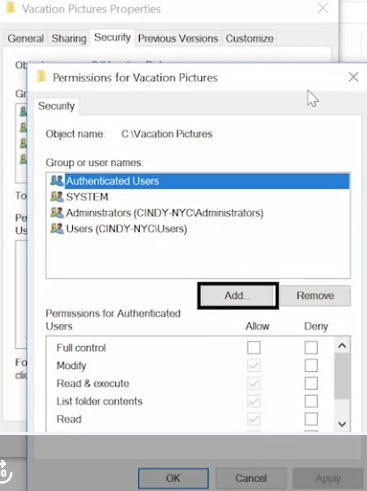
From here, I can see that I can add a group or usernames to this ACL. I’m going to go ahead and click “Add”.
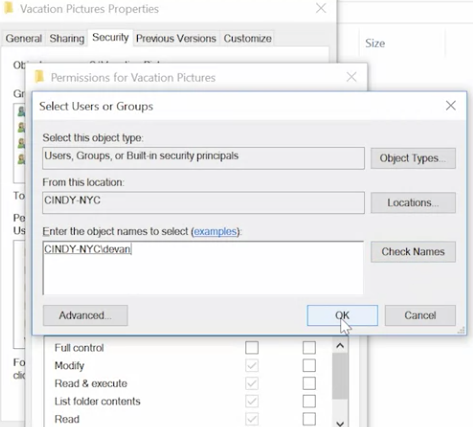
From here, it asks me to enter the username of the person I want to add on this ACL. I’m going to enter Devan and then click “Check Names” to verify that I typed it in right. After it’s been verified, I’m going to click “Okay”.
 Once Devan’s added to the ACL, I can click on his username, then check the allow boxes for the permissions I want to give him. Let’s give Devan modify access so you can add pictures to this folder too.
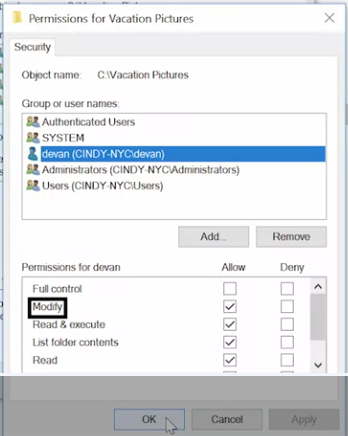 Let’s say Devan is in a group that has access to this folder. If we explicitly check the deny box for Devan’s username, even if the group has access to the folder, Devan won’t.
To modify a permission in the CLI, we’re going to return to the icacls command. In the examples I’m going to show you, we’ll be running icacls from PowerShell. (The icacls command was designed for the Command Prompt before PowerShell, and its parameters use special characters that confuse PowerShell. By surrounding icacls parameters with single quotes, I’m telling PowerShell not to try and interpret the parameter as code. If you run these commands in command.exe, you’ll need to remove the single quotes for them to work.)
In PowerShell, the command would be icacls ‘C:\Vacation Pictures' /grant with single quotes, ’Everyone:(OI)(CI)(R)’
- In the PowerShell example, we add single quotes to make PowerShell ignore the parenthesis and because there’s a space in the path.

In Command Prompt, the command would be: icacls with double quotes, “C:\Vacation Pictures” /grant Everyone: (OI)(CI)(R)
- In the command.exe example, we have to use double quotes for the path, and we don’t need the single quotes anymore to hide the parenthesis.

Let’s say we want anyone with permission to use this computer to be able to see these pictures. We don’t want them to add or remove photos though. What permissions do we want to give them? That’s right. We want to give them read permission to the vacations pictures folder.


Actually, maybe I didn’t really want everyone to look at my vacation photos…Maybe I just want the people that have passwords on the computer to be able to see them.
In that case, I want to use Authenticated Users group. That group doesn’t include guest users. First, let’s add a new DACL. icacls ‘C:\Vacation Pictures’ /grant ’Authenticated Users:(OI)(CI)(R)’

Now, let’s remove the permissions for the everyone group. icacls ‘C:\Vacation Pictures’ /remove Everyone.

Now, let’s use icacls to verify that their permissions are set the way we intended. icacls ‘C:\Vacation Pictures’
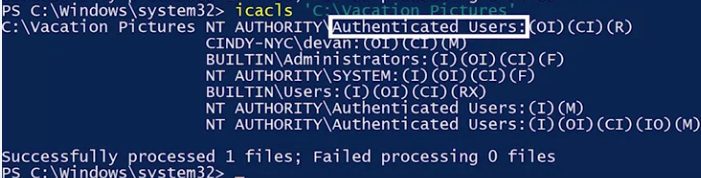 We can see that authenticated users are added and everyone is removed.