Managing Services in Windows
Like Linux, Windows also allows the system administrator to manage the services that are running on the system.
For this example, let’s look at the Windows update service. This service is in charge of detecting software updates for either the operating system or other installed programs, downloading them and having them ready to be applied to the system.
Let’s get the status of the running service using the get service command. So I’m going to go ahead and open Power Shell and I’m going to go ahead and type in get service. I’m going to type in the shorthand form for Windows update service, which is this. So, wuauserv is a short name for the Windows update service.
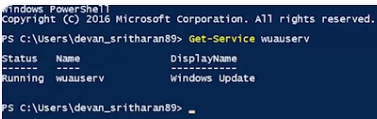 We can see that the windows update service is running and can get more information about it by running this next command.
Which is going to be get service wuauserv and then I want to open format list. Asterix.
We can see that the windows update service is running and can get more information about it by running this next command.
Which is going to be get service wuauserv and then I want to open format list. Asterix.
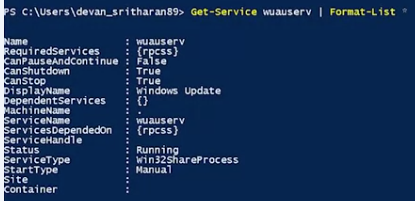 This will show us what type of service it is and how it’s configured to run. It’s a good way to get additional information on the service you’re interested in.
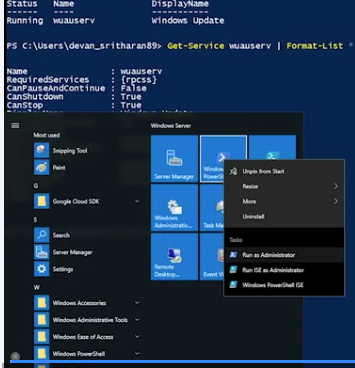
Now, let’s try stopping the service and then checking the status. For this, I’ll open an administrative power shell and run the stop service command. So I’m going to go into my start and instead of clicking on it, I’m going to right click and then type in run as administrator. Yes, to the security control.
 So now, I’m going to go ahead and type in stop service wuauserve. Next I want to type in get service wuauserve. So, this service has been stopped.
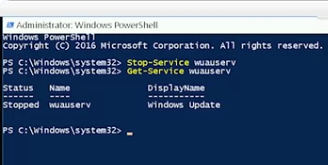 In order to start it back up, we execute the start service command, which I’m going to do start service wuauserve to start the service. And then I’m going to type in get service, To show that the service is now running.
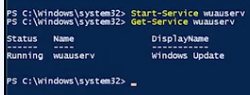
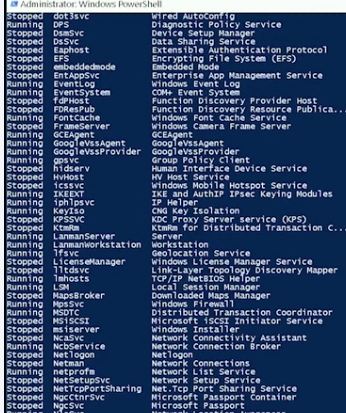
Finally, you can list all services that are registered in the system using the get service command.
Finally, you can list all services that are registered in the system using the get service command.

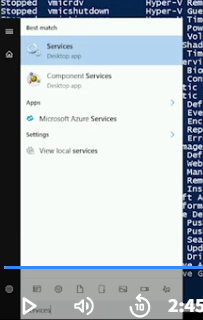
 We can also perform these same actions graphically using the services management console.
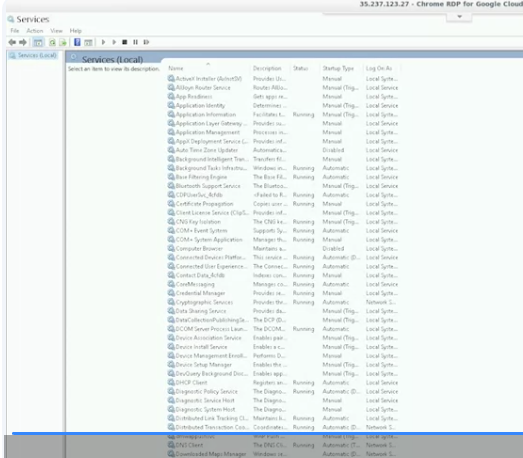 This console shows us all the services in the system. The ones that are running will say running in the status column, while the ones that aren’t running won’t say anything in the status column.
We can find the Windows update utility at the end of the list. We can stop it by right clicking on it. And then clicking stop. And then right clicking again, and hitting start. And there you have it. That’s how you get the status, stop and start services in Windows.