Windows - Resource Monitoring
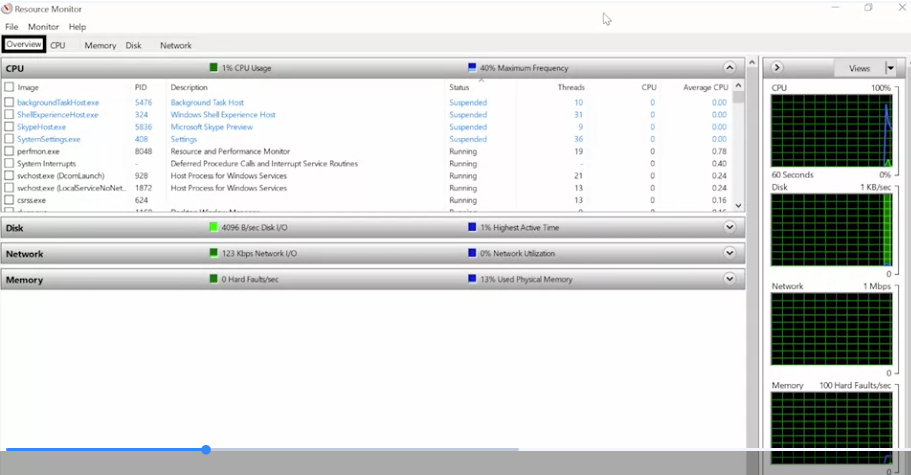
In Windows, one of the most common ways to quickly take a peek at how the system resources are doing is by using the resource monitoring tool. You can find it in a couple of places, but we’ll launch it right from the start menu.

Once it opens, you’ll see five tabs of information. One is an overview of all the resources on the system. Each other tab is dedicated to displaying information about a particular resource on the system. You’ll also notice that Resource Monitor displays process information too, along with data about the resources that the process is consuming.
 You can get this performance information in a slightly less detailed presentation from Process Explorer. Just select the process you’re interested in, right click and choose Properties. From there, pick the performance graph tab.
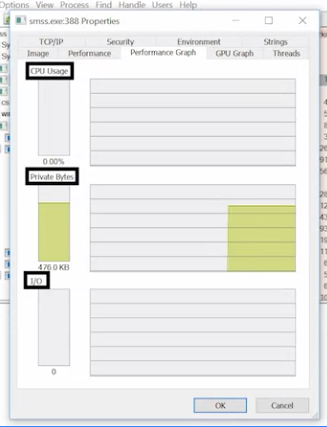 You can see quick visualizations of the current CPU memory indicated by Private Bytes and disk activity indicated by IO
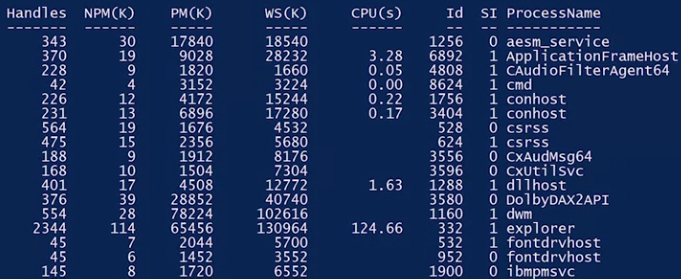
There are several ways to get this information from the command line, but we’ll focus on a PowerShell centrist one, our friend Get-Process. We know that if we run Get-Process without any options or flags, we get processed information for each running process on the system.
 If you check out the column headings at the start of the output, you’ll see things like NPMK. Values in this column represent the amount of non paged memory the process is using. The K stands for the unit, kilobytes.
 Let’s say you wanted to just display the top three processes using the most CPU. You could write this command. Get-Process, pipe sort, CPU-descending pipe, select-first 3-property ID, ProcessName and CPU.
 Just like that, we get the top three CPU hogs on the system.
Let’s go through it step by step.
- First, we call the Get-Process command line to obtain all that process information from the operating system.
- Then we use a pipe to connect the output of that command to the sort command. You might remember pipes from some Linux examples earlier.
- We sort the output of Get-Process by the CPU column, descending to put the biggest numbers first.
- Then we pipe that information to the select command.
- Using select, we picked the first three rows from the output of sort and pick only the property ID, name and CPU and out to display
Just like that, we get the top three CPU hogs on the system.
Let’s go through it step by step.
- First, we call the Get-Process command line to obtain all that process information from the operating system.
- Then we use a pipe to connect the output of that command to the sort command. You might remember pipes from some Linux examples earlier.
- We sort the output of Get-Process by the CPU column, descending to put the biggest numbers first.
- Then we pipe that information to the select command.
- Using select, we picked the first three rows from the output of sort and pick only the property ID, name and CPU and out to display
For more information about system diagnostics processes in Windows, check out the link here