Windows - Files
When we talk about data, we’re referring to the actual contents of the file, like a text document that we save to our hard drives.
The file metadata includes everything else like the owner of the file, permissions, size of the file, its location on the hard drive, and so on.
So how exactly does NTFS store and represent the files we’re working with on our operating system. NTFS uses something called the Master file table (MFT): A way NTFS stores and represents the files you’re working with on your operating system
Usually, there’s a one to one correspondence between files and MFT records. But if a file has a whole lot of attributes, there might be more than one record to represent it.
In this context, attributes are things like the name of a file, its creation timestamp. Whether or not a file is read only, whether or not a file is compressed, the location of the data that the file contains, and many other pieces of information
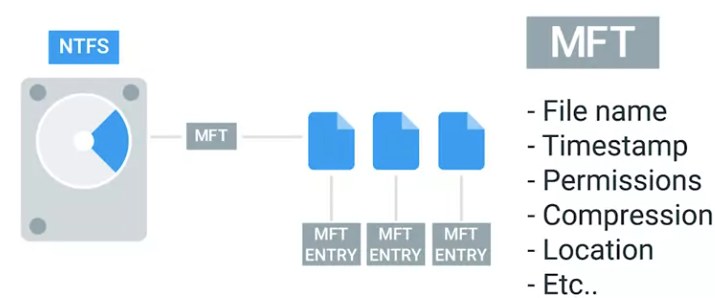 When you create files on an NTFS file system, entries get added to the MFT. When files get deleted, their entries in the MFT are marked as free so they can get reused
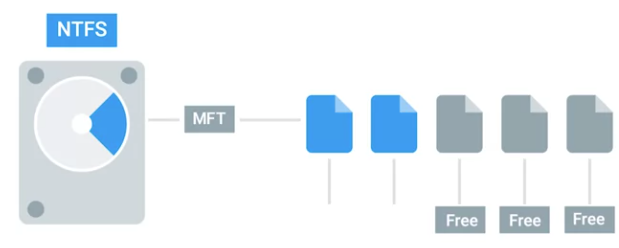
One important part of a files entry in the MFT is an identifier called the File record number: The index of the files entry in the MFT This is the index of the files entry in the MFT. A special type of file we should mention in Windows is called a Shortcut: An entry in the MFT that has a reference to some destination, so that when you open it up, you get taken to that destination
Besides creating shortcuts as ways to access other files, NTFS provides two other ways using hard and symbolic links.
- Symbolic links: Work similarly to shortcuts, but at the file system level. The key difference is that the operating system treats them like substitutes for the file they’re linked to in almost every meaningful way.
- When you create a symbolic link, you create an entry in the MFT that points to the name of another entry or another file.
Let’s create a directory on the desktop called links. Inside of it, we’ll create a text file called file 1.
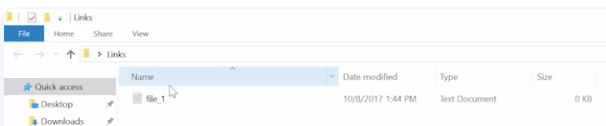 And inside of that, let’s add the word Hello.
 And then let’s make a shortcut that points this file called file 1 shortcut.
 Next, let’s open up a command prompt and navigate to this directory.
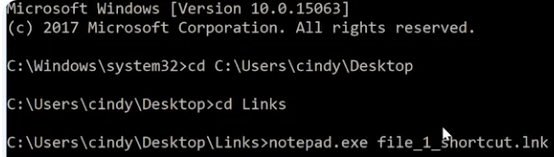 Instead, notepads opened up the shortcut file which has some text in there that isn’t readable by us.
 Instead of a shortcut, let’s create a symbolic link. You can create symbolic links with the make link program from the command prompt.
Let’s make one called file 1 symlink with the following command and then open it up a notepad
Instead of a shortcut, let’s create a symbolic link. You can create symbolic links with the make link program from the command prompt.
Let’s make one called file 1 symlink with the following command and then open it up a notepad

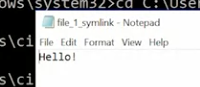 this is what we mean when we say the operating system treats a symbolic link just like the original file.
- When you create a symbolic link, you create an entry in the MFT that points to the name of another entry or another file.
Let’s create a directory on the desktop called links. Inside of it, we’ll create a text file called file 1.
There’s another type of link worth mentioning called a hard link. When you create a hard link in NTFS, an entry is added to the MFT that points to the linked file record number, not the name of the file.
This means the file name of the target can change and the hard link will still point to it. You can create hard links in a way that’s similar to symbolic links, but with the /H option. So make link /H file_1_hardlink file_1.
 Since a hard link points out the file record number and not the file name, you can change the name of the original file and the link will still work.
For more information about the NTFS file system, please check out the following links: Master File Table, Creating Symbolic Links, and Hard Links and Junctions.