Linux - Modifying Permissions
In Linux, we change permissions using the chmod or change mode command. First, pick which permission set you want to change.
- The owner, which is denoted by u
- the group the file belongs to, denoted by g
- or other users, which is noted by an o
To add or remove permissions, just use a plus or minus symbol that indicates who the permission effects. Let’s take a look at some examples:
Let’s chmod u+x, my_cool_file. This command is saying that we want to change the permission of my_cool_file by giving executable or x axis to the owner or u.
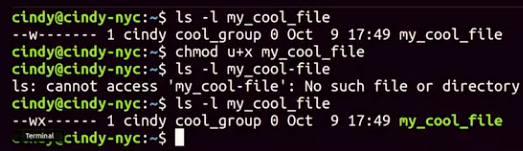 You can do the same thing if you wanted to remove a permission. Chmod u-x, my_cool_file. Instead of a plus, we just minus.
 If you wanted to add multiple permissions to a file, you could just do something like this.
 This is saying we want to add read and execute permissions for the owner of my_cool_file.
You can do the same for multiple permission sets. You do chmod, ugo+r, my_cool_file.
 Now, this says we want to add read permissions for our owner, the group the file belongs to and all other users and groups.
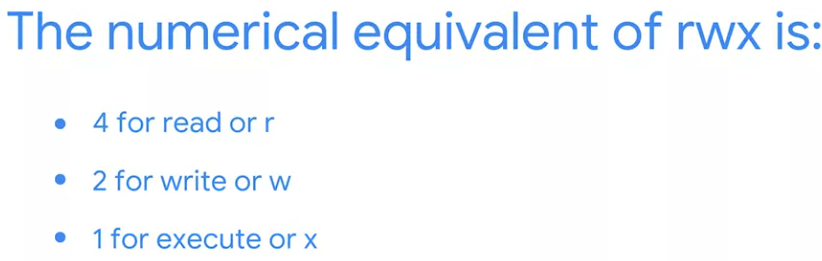 To set permissions, we add these numbers for every permission set we want to effect.
Let’s take a look at an example.
 The first Number 7 is our owner’s permission. The second Number 5 is our group permissions, and the third Number 4 is the permission for all other users. Where are we getting 5 and 7? Remember, you have to add the permissions together. If you add 4, 2 and 1 together, you get r, w, x, which equals 7, so our owner permission is able to read, write, and execute this file
Now, you can see how numeric format is quicker than symbolic format
You can also change the owner and the group of a file that you own or change owner command allows you to change the owner of a file. Let’s go ahead and change the owner to Devan. To change the group a file belongs to, you can use chgrp or change group command.
  Now, the best group ever is the group owner for this file.