Remote Connection - File Transfer on Windows
the PuTTY program we talked about a couple of lessons back, supports the SCP protocol.
The PuTTY package comes with a tool called the PuTTY Secure Copy Client or pscp.exe.
You can use it to copy files in a very similar way to the Linux SCP command.
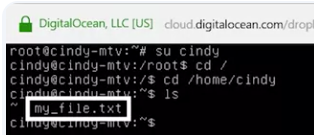
 pscp.exe, and I’m going to grab a file from my desktop. Then I’m going to copy it to my Linux work station. Then I’m going to add the location of where I want to copy it to.
Now if you go back to my Linux workstation, we can see that it was copied.
 Using PuTTY or SCP to transfer files can be a little time consuming, especially if you need to transfer files to multiple machines.
As an alternative, Windows came up with a built in mechanism to share files by using the concept of shared folders. Shared folders do pretty much what you’d expect from their name. You tell Windows you want to share a folder with a person or group of people, then drop some files into it. Anyone you’ve shared the folder with can then access those files. Sharing folders in Windows is easy.
Just right click on the folder you want to share. Then mouse over this share with option. Then pick specific people from here.
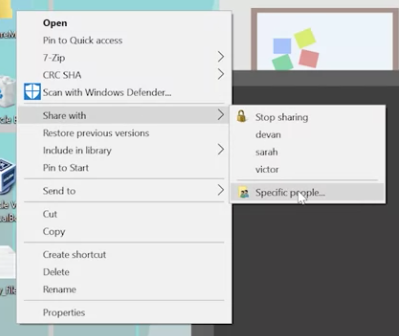 From here, you can add the individual users or groups you want to share the folder with.
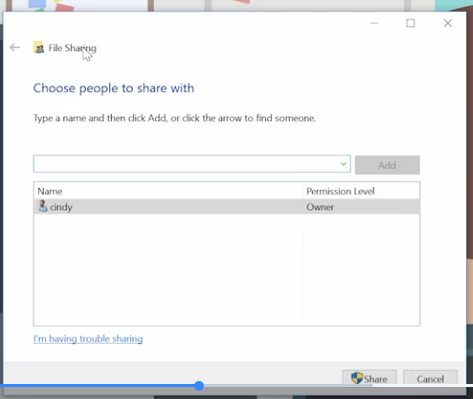 There’s even an option to add everyone to the sharing permissions, which might be convenient but isn’t super secure. Once you’ve shared the folder, you can access it from other computers.
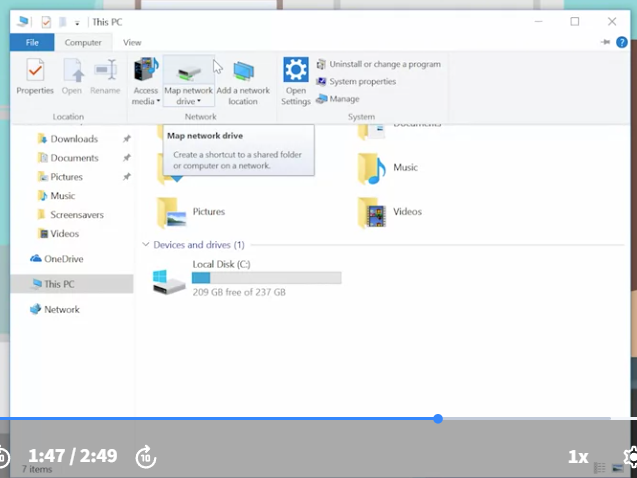
Start by opening up this PC, then going into the computer tab.
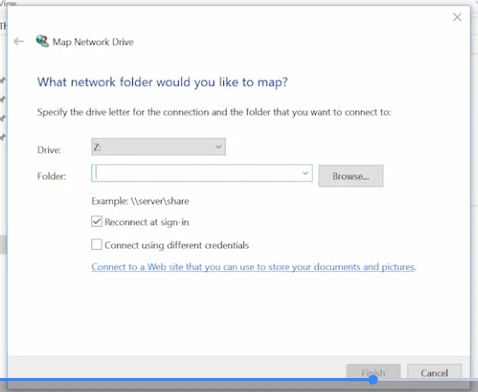
From here, you can map the folder directly to your computer with the map network drive option.
 Finally, on another computer, you can visit it directly from the run box by typing in backslash whatever the computer name is, and then backslash the folder name that you mapped it to
You might be interested to know that you can share folders from the command line too using the net share command. Net share let’s you do the same thing as the GUI sharing workflow. You’ll need to specify what kind of permissions you’d like to give which users. Let’s say you wanted to give everyone on your network full permissions to a folder called ShareMe. You could execute this command from an elevated or administrator level PowerShell prompt. For more information about managing shared resources in Windows, check out the link here