Virtual Machines
Virtual instance: A single virtual machine
I’m currently using a Windows machine, and in this lesson, we’re going to set up and virtualize an Ubuntu instance. Let’s go ahead and launch this application
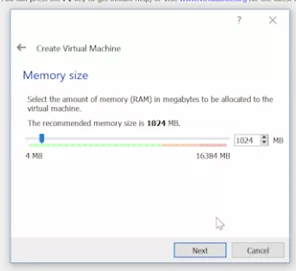
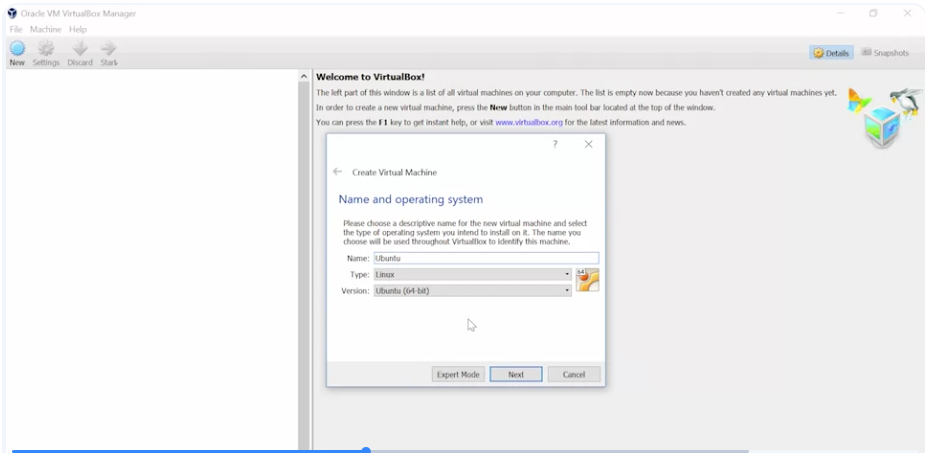 Next, it asks how much RAM I want to dedicate to this VM. One gigabytes is more than enough for me so I’m just going to keep this and then continue.
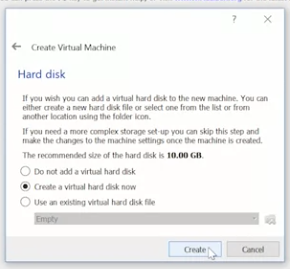
 Now it asks how much hard-drive space I want to dedicate to this VM. I’m just going to keep the default of 10 gigabytes and click Create.
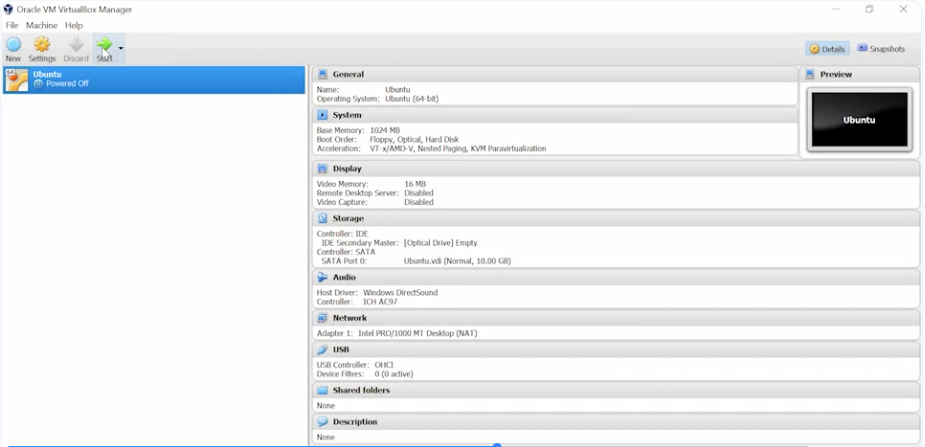
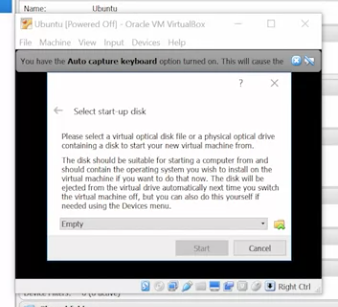
 Now my menu here, I can click Start. It’ll start the VM
 To modify hardware resource allocation to a VM, all we need to do is right-click on the VM, then click Settings
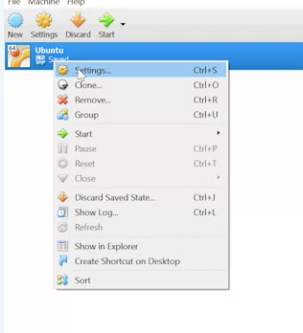 From here, we’ll be able to change how much RAM we want along with other settings.
For virtual machines though, all we need to do is right-click and select Remove. From here, it asks if we want to remove all files, including the VM install itself, or just remove it from the list of VMs.
Virtual Machines
Virtualization creates a simulated computer environment for running a complete operating system (OS). The simulated computer environment is called a virtual machine (VM). On a VM, you can run an OS as if it were running directly on your physical hardware. This reading explains how virtual machines work and introduces some tools for creating a VM.
How VMs work
Virtual machine software creates a virtualized environment that behaves like a separate computer system. The VM runs in a window on the operating system of your physical computer. The operating system that runs on your physical computer is called the “host” OS. Any operating systems running inside a VM are called “guests.” In the virtual environment, you can install your guest OS, and it will function like it’s running on a physical machine. Whenever you want to use the guest OS, open your VM software and run the guest OS in a window on your host desktop.
Using a virtual machine lets you experiment with different operating systems without having to uninstall or replace your host OS. For example, you can try a Linux OS as a VM on your Windows computer to see how the two OSs compare, or you can use a VM on your Linux system to run a Mac software package.
Another advantage of VMs is that they are isolated from the rest of your system. Software running inside a VM doesn’t affect the host OS or other VMs on your system. This isolation makes VMs a safe place to test software even when there is a risk of negative effects on a system.
A key advantage of VMs is significant reduction in hardware and electricity costs. You can run many VMs on a single host by dividing available hardware resources among each virtualized environment. Modern computer hardware offers a lot of computing power in a single device. But a typical OS will require only a fraction of the computing resources available in a computer. This means you won’t have to run those systems on several physical computers that are only partially used.
VM software divides hardware resources among virtualized environments by designating a portion of resources as virtual resources. When you create a VM you may be asked to specify the amount of physical hard drive space you want to set apart for your VM to use. The VM software will create a virtual hard drive for your VM of the specified size. VM software may have you also specify the amount of RAM you want to allocate for your VM. After you create the VM, you can usually adjust resource allocations. If you want more drive space or RAM for your VM, you can adjust the settings in the VM software to allocate more of those resources.
VM software
Some common Virtual Machine software used to create VMs:
-
VirtualBox runs on Windows, Linux, Macintosh, and Solaris hosts. VirtualBox supports various guest operating systems, including Windows, Linux, Solaris, OpenBSD, and macOS. VirtualBox is open-source software available for free on the VirtualBox download page.
-
Hyper-V is Microsoft’s virtualization platform. It is available as an integrated feature on the Windows operating system. Hyper-V supports Windows, Linux, and FreeBSD virtual machines. It does not support macOS. See Microsoft’s Hyper-V for Windows documentation for information on how to access Hyper-V on recent versions of Windows.
-
VMware desktop software runs on Windows, Linux, and macOS hosts. VMware Workstation Player is the VMware software that lets users run multiple operating systems on a single physical personal computer. It is freely available for non-commercial use on the VMware Workstation Download page.
-
Red Hat Virtualization (RHV) is a business-oriented platform developed for virtualization in enterprise computing contexts. RHV supports a variety of guest systems. Red Hat charges an annual subscription fee for product access, updates, patches, and technical support. See Red Hat’s RHV Datasheet for information on how to implement RHV on existing hardware infrastructures.
Key takeaways
Virtualization lets you create a simulated computer environment for running a complete operating system.
-
Virtual machine (VM) software creates a virtualized environment that behaves like a separate computer system.
-
Virtualization lets you experiment with different operating systems without having to uninstall or replace your host OS and provides a safe place to test software.
-
VM software divides hardware resources among virtualized environments by allocating portions of available resources as virtual resources.
-
A variety of Virtual Machine software are available for creating VMs.
More resources
For step-by-step instructions on how to create a virtual machine using VirtualBox, see the VirtualBox manual