Windows - Package Dependencies
Having dependencies: A process of counting on other pieces of software to make an application work since one bit of code depends on another in order to work
Library: A way to package a bunch of useful code that someone else wrote
Dynamic-link libraries (DLL): Programs that want to use functionality that the code provides can tap into it if they need to (shared libraries) A few common DLLs used by Windows include:
- .drv files - Device drivers manage the operation of physical devices such as printers.
- .ocx files - Active X controls provide controls like the program object for selecting a date from a calendar.
- .cpl files - Control panel files manage each of the functions found in the Windows Control Panel.
On modern Windows operating systems though, DLL hell is a problem of the past. To fix it, most shared libraries and resources in Windows are managed by something called side-by-side assemblies or SXS. Most of these shared libraries are stored in a folder at c\windows\winsxs.
- Side-by-side assemblies: A system that manages most shared libraries and resources on Windows and supports access to multiple versions of the same shared library automatically
Using a Windows package management commandlet called find-package, you can locate software along with its dependencies, right from the command line.
By the way, a commandlet is basically the name we give to Windows PowerShell commands that use the verb dash, noun format.
Let’s say you wanted to install the Sys internals package, which is a set of tools released by Microsoft that can help you troubleshoot all sorts of problems on your Windows computers. You could download the Sys internals package from the Microsoft website, or you could use the package management feature.
Then we can try to locate the Sys internals package by executing this command. Find-Package sysinternals-includeDependencies, an error, no match found
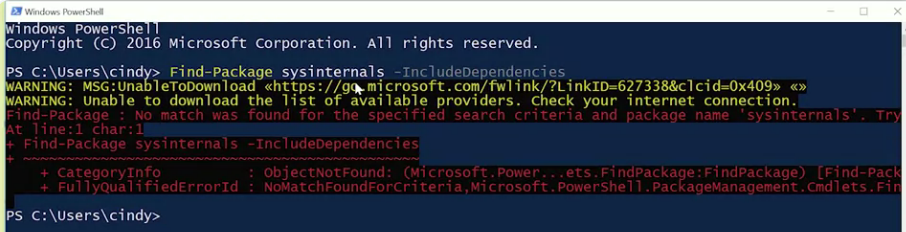 This exception was generated because the default source of packages in PowerShell is the PowerShell gallery, which doesn’t contain the Sys internals package.
Luckily, all we need to do is tell PowerShell about a place where it can find the sys internals package. That’s a package repository called chocolatey, a place where all kinds of Windows software packages live. - Chocolatey: A third party package manager for Windows
Before we can install any packages, we need to add a package source that tells our computer where it can find the packages we want to install. Since we want to use chocolatey to find our packages, we need to add it as a package source. We’re going to do that with the PowerShell command register-package source. Let’s go ahead and type register-PackageSource-Name chocolatey-ProviderName Chocolatey -Location http: //chocolatey.org/api/v2.
 We can verify both sources of software are now good to go with the Get-PackageSource command and then try to locate our package and its dependencies again with Find-Package sysinternals- IncludeDependencies
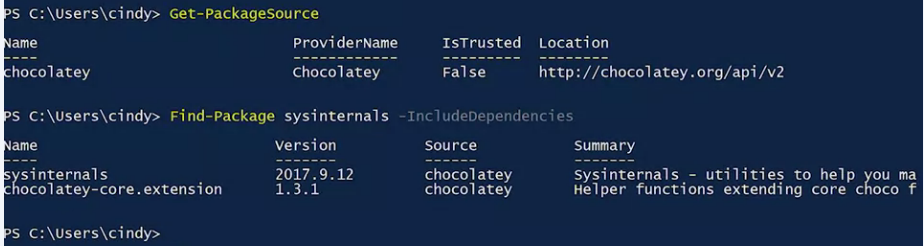 Now that we know that’s the package we want, we can use a commandlet called Install-Package to actually install Sys internals and its corresponding dependencies.