Configuring Services in Windows
For this example, we’ll be using Internet Information Services, the feature offered by Windows to serve web pages.
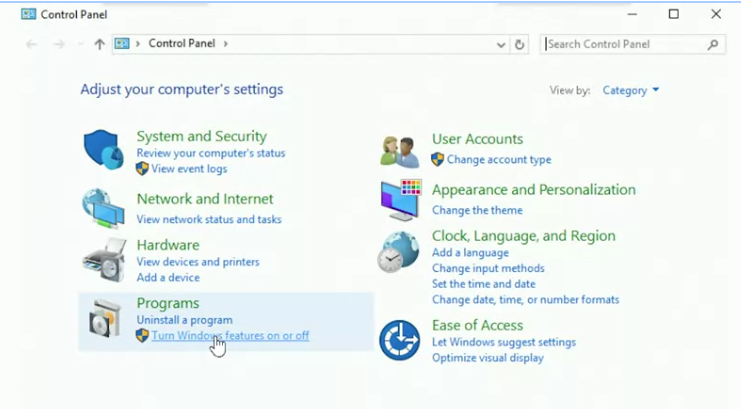
First, we’ll need to enable this feature. We’ll use the turn features on and off option in the Windows Control Panel. Click on the ’Turn Windows features on and off“.
 This opens the Server Manager, which we can now use to enable Internet Information Services.
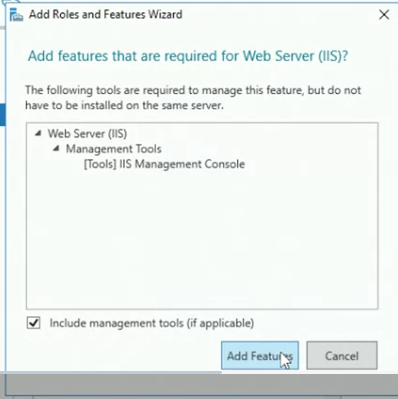
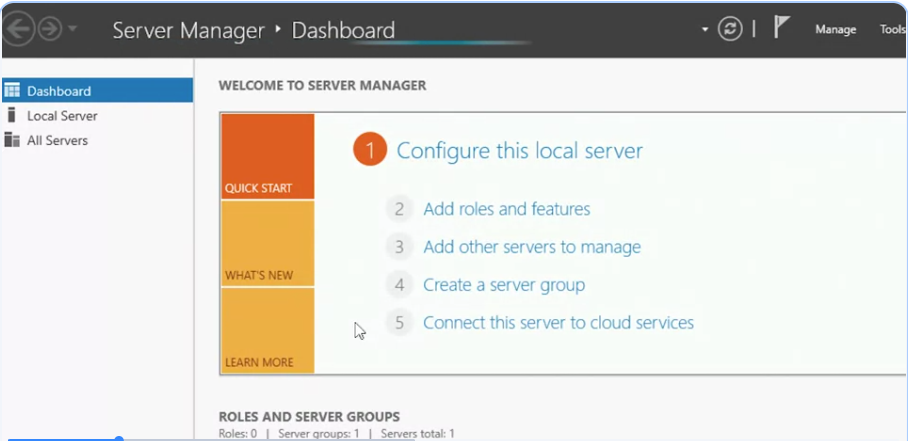 I’m going to go ahead and click on “Next”, “Next” again, ’Next“ again, so total of three times. I’m going to go ahead and scroll down and look for web server IIS. I’m going to click on that,
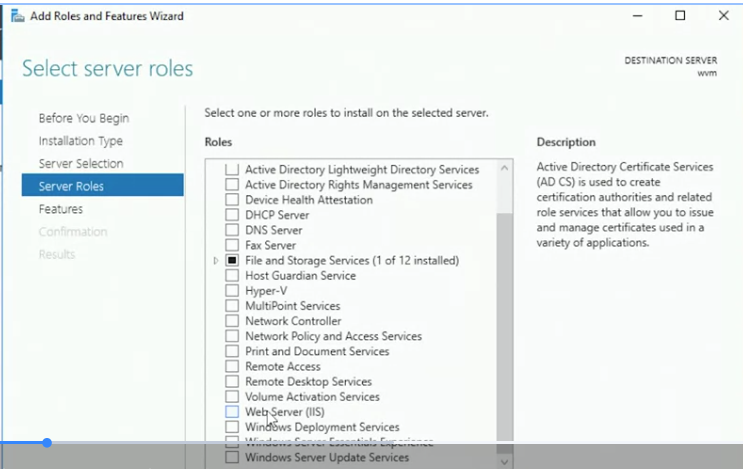 and I’m going to click “Add Features”.
 Click “Next”. Click “Next” again, ’Next“ again, “Next” again, and then hit “Install”.
I selected the web server option to have this service enabled on this Windows Instance. It’s now installing all the necessary pieces to enable a web server on this machine.
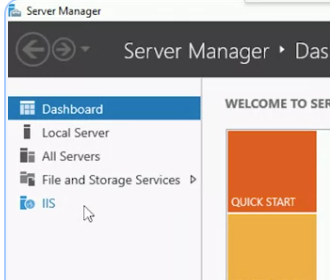
When we close this window, we notice that there is a new option on the service manager called IIS.
Click “Next”. Click “Next” again, ’Next“ again, “Next” again, and then hit “Install”.
I selected the web server option to have this service enabled on this Windows Instance. It’s now installing all the necessary pieces to enable a web server on this machine.
When we close this window, we notice that there is a new option on the service manager called IIS.
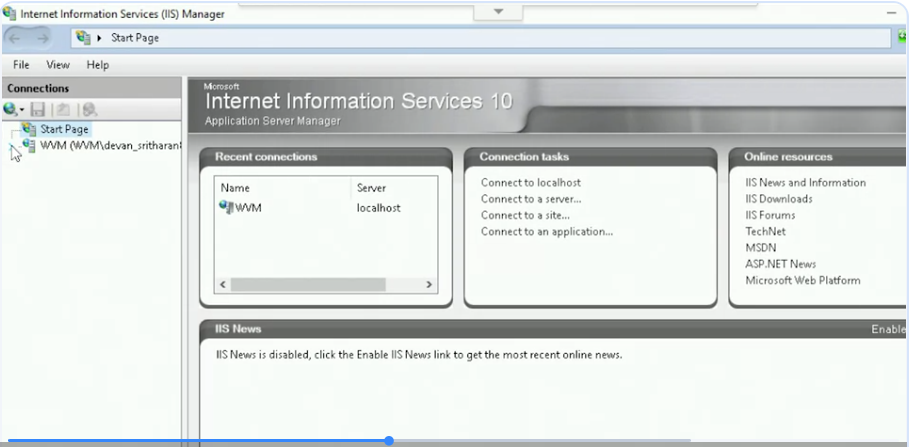
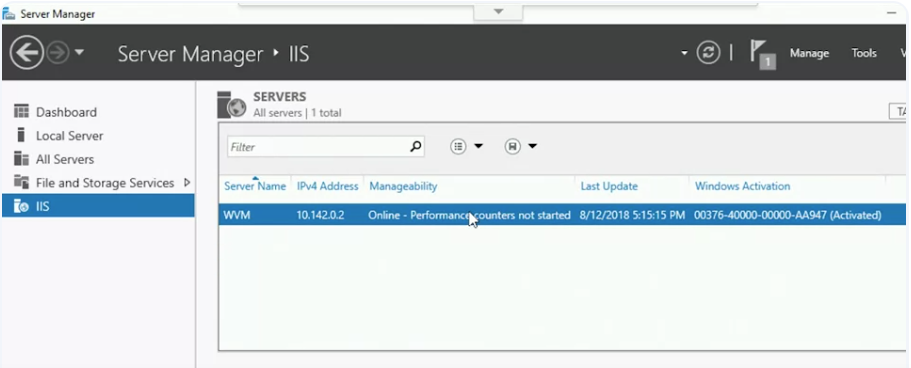 We see here that we have an IIS service running on this server.
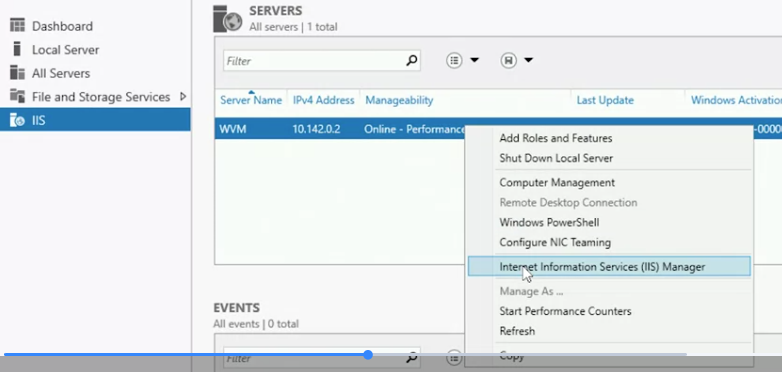
We can configure this service by right-clicking on the entry, and then selecting Internet Information Services Manager.
We see here that we have an IIS service running on this server.
We can configure this service by right-clicking on the entry, and then selecting Internet Information Services Manager.
 Then I’m going to expand on our server, and then click on “Sites”.
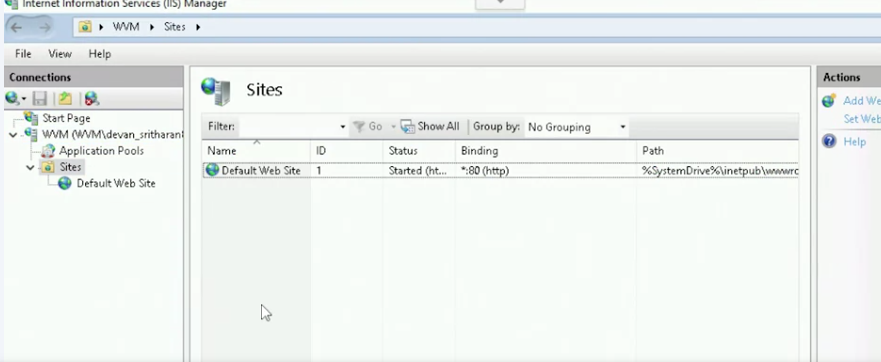 These are the websites that are handled by this service. Currently, there’s only one called default website.
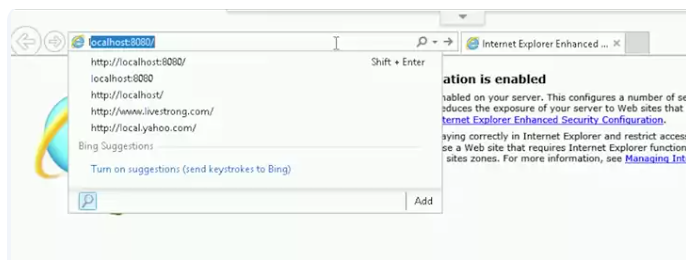
Let’s see what this website looks like by navigating to local host. I’m going to go ahead and click on “Internet Explorer” and type in localhost.
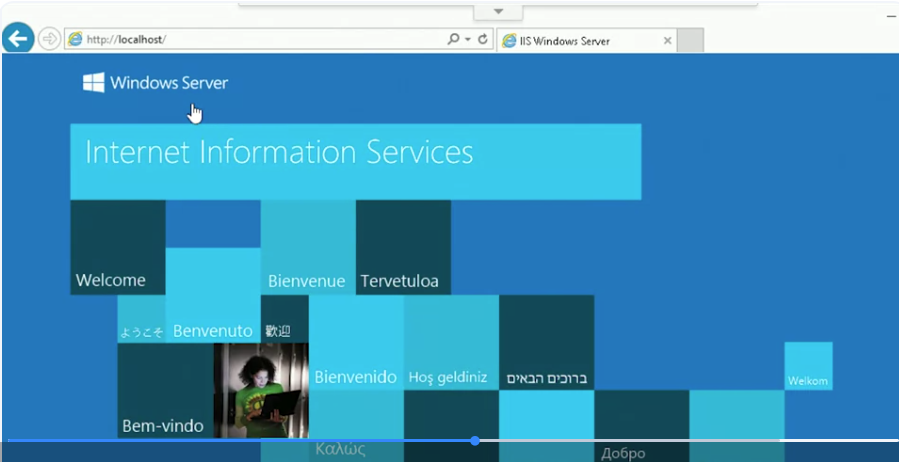 Our server is serving the default website.
Now let’s add a different website to it. We go back to our Windows Information Services. I’ve created an example site and stored in my documents folder.
Our server is serving the default website.
Now let’s add a different website to it. We go back to our Windows Information Services. I’ve created an example site and stored in my documents folder.
Now, I’ll copy this example site into the inetpub directory, which is the directory normally used to serve websites when using IIS. I’m going to hit “Copy”.
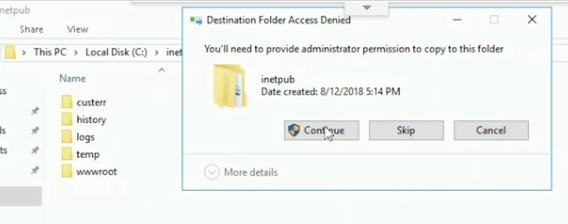
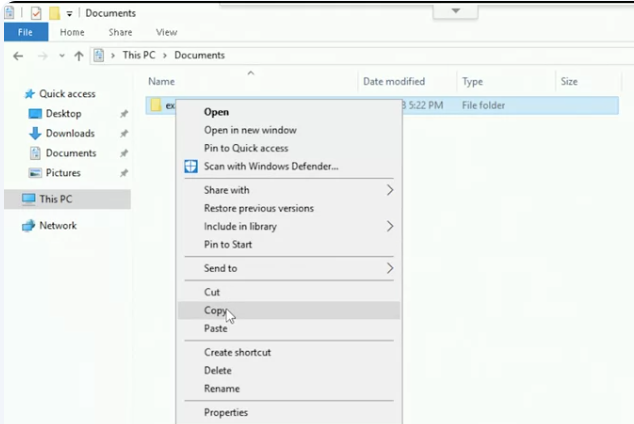 Then I’m going to go into the inet directory, just C colon backslash inetpub. I’m going to paste that example folder for my documents to the inetpub directory. Then hit “Continue”. Security control. I’ve copied my website.

 Now, let’s enable it in the IIS Manager console. Let’s go back to the console.
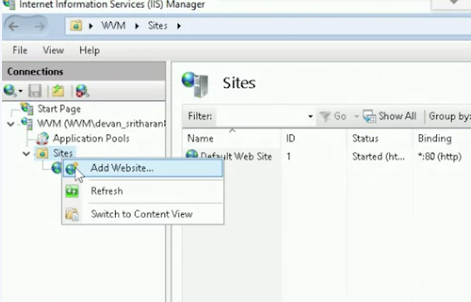
I can add a new website by right-clicking on the list of websites and selecting the Add Website option.
Now, let’s enable it in the IIS Manager console. Let’s go back to the console.
I can add a new website by right-clicking on the list of websites and selecting the Add Website option.
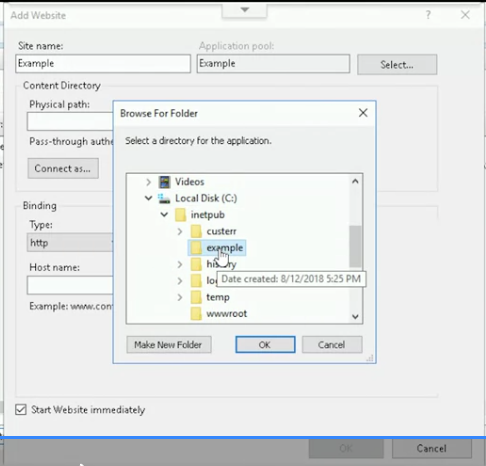
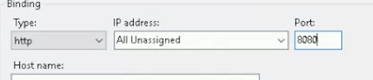
Let’s select example as the name of my website. Let’s select the folder that I just copied as the physical path for the website. Finally, let’s select 8080 as the port.
Let’s select example as the name of my website. Let’s select the folder that I just copied as the physical path for the website. Finally, let’s select 8080 as the port.
 I set up the new website. IIS tells me that the website is already up and running.
  I’m going to go ahead and click on “Internet Explorer”, type up localhost, and type in colon port 8080, and hit “Enter”.