Windows - Changing Directories in the CLI
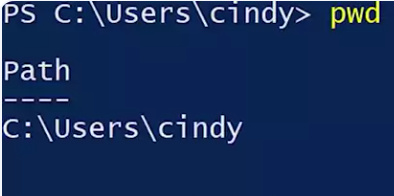 pwd or print working directory tells you which directory you’re currently in
If we want to change the directory that we’re in, we can use the cd or change directory command…To use this command we’ll also need to specify the path that we want to change to.
- Remember, this path can be absolute, which means it starts from this drive letter and spells out the entire path.
- On the flip side, it can be relative meaning that we only use part of the path to describe how to get to where we want to go relative to where we’re currently are. There’s a shortcut to get to the level above your current directory, cd..
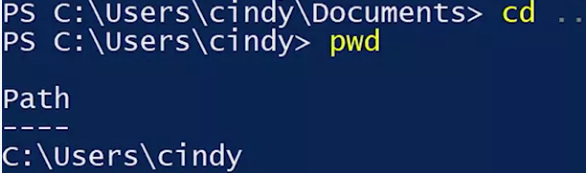 The dot dot is considered a relative path because it will take you up one level relative to where you are.
This time, let’s go to the desktop folder using the new command we learned. We know that the desktop and document directories are under the home directory so we could run cd.., then cd desktop but there’s actually an easier way to write this. Cd..backslash desktop. Let’s check pwd one more time, pwd now shows that we’re in the desktop folder.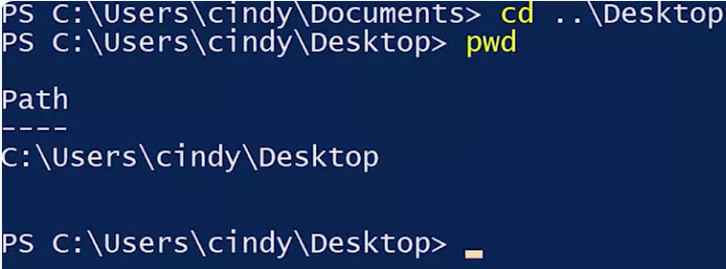 another cool shortcut for cd that you can use is cd tilde
Tab completion: A way to auto-complete a command or file names and directories using “Tab”