Windows - Input, Output, and the Pipeline
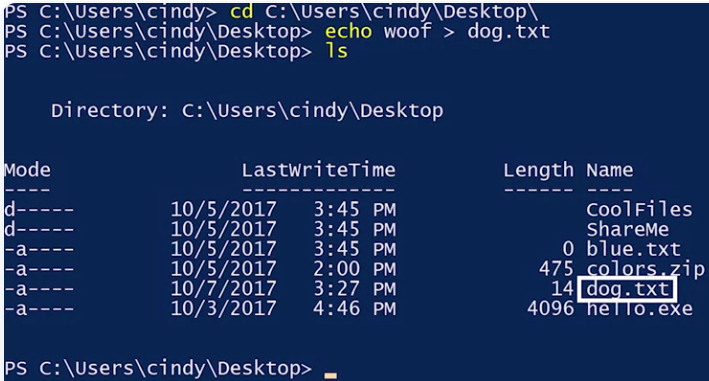 We’ll now see a file called dog.txt. Inside that file, we should see the word woof. There it is.
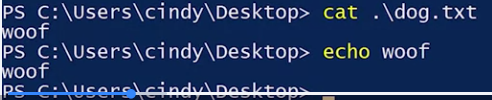
What’s happening here? Let’s take a closer look. Echo woof. In PowerShell, the echo is actually an alias for Write-Output.
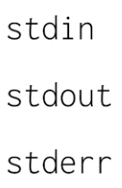
Every Windows process and every PowerShell command can take input and can produce output. To do this, we use something known as I/O streams or input/output streams.
- I/O Streams: An input stream handles data flowing into and out of a program
- stdin
- stdout
- stderr
Each process and Windows has three different streams, standard in, standard out, and standard error. It’s helpful to think of these streams like actual water streams in a river.
 The greater than symbol (>) is something we call a redirect or operator that lets us change where we want our standard output to go.
Instead of sending standard out to the screen, we can send standard out to a file. If the file exists, it will override it for us. Otherwise, it will make a new file. If we don’t want to overwrite an existing file, there’s another redirect or operator we can use to append information greater than, greater than (>>)
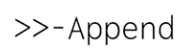
 Echo woof>> dog.txt. Now if I look at my dog.txt file again, we can see that woof was added again.
What if we wanted to send the output of one command to the input of another command? For this, we’re going to use the pipe operator ( | )
First, let’s take a look at what’s in this file.
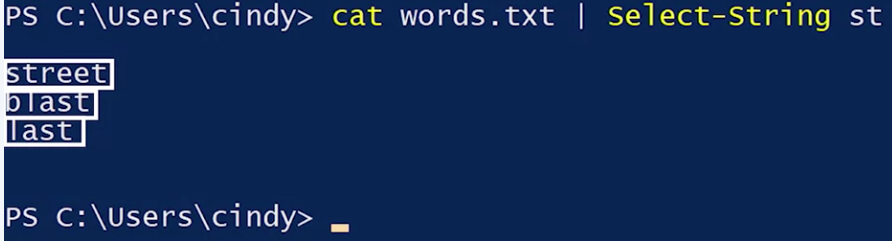
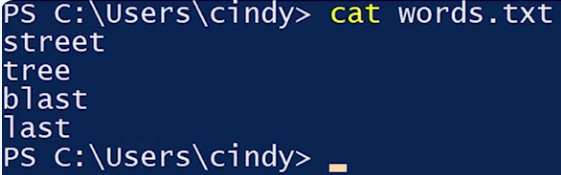 Cat words.txt. Look at that, it’s a list of words. Now what if we want to just lift the words that contain the string st? We could do what we’ve done before and just use the select-string or SLS on the file directly
This time, let’s use the pipeline to pass the output of cat to the input of select-string, cat, words.txt, pipe, select-string st. Now we can see a list of words with the string st.
To tie things together, we can use output redirection to put our new list into a file. Now greater than and then a new file called st_words.txt. Now if I cat st_words.txt, there it is

Remember when we tried to remove a restricted system file earlier and we got an error that said permission denied. Let’s review that once more. This time I’m going to remove another protected file, rm secure_file. We see errors like we’re supposed to. But what if we didn’t want to see these errors?

Let’s type rm secure_file 2>errors.txt. If I look at errors.txt, I can see the error message that we just got.

What does the 2 mean? All of the output streams are numbered. One is for standard out, which is the output that you normally see, and two is for standard error or the error messages.
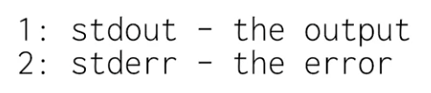 When we use 2>, we’re telling PowerShell to redirect the standard error stream to the file instead of standard out. What if we don’t care about the error messages, but we don’t want to put them in a file?
In PowerShell, we can do this by redirecting standard error to dollar sign null. What’s dollar sign null? It’s nothing. No, really, it’s a special variable that contains the definition of nothing. You can think of it as a black hole for the purposes of redirection. Let’s redirect the error messages this time to dollar sign null , rm secure_file 2>$null.

