Windows - Managing Processes
There’s another process management tool we haven’t talked about, which lets you do things like restart or even pause processes. This tool is called Process Explorer. Process Explorer: A utility Microsoft created to let IT support specialists and system administrators look at running processes
- Although it doesn’t come built into the Windows operating system, you can download it from the Microsoft website
Once you’ve downloaded Process Explorer and started it up, you’ll be presented with a view of the currently active processes in the top window pane.
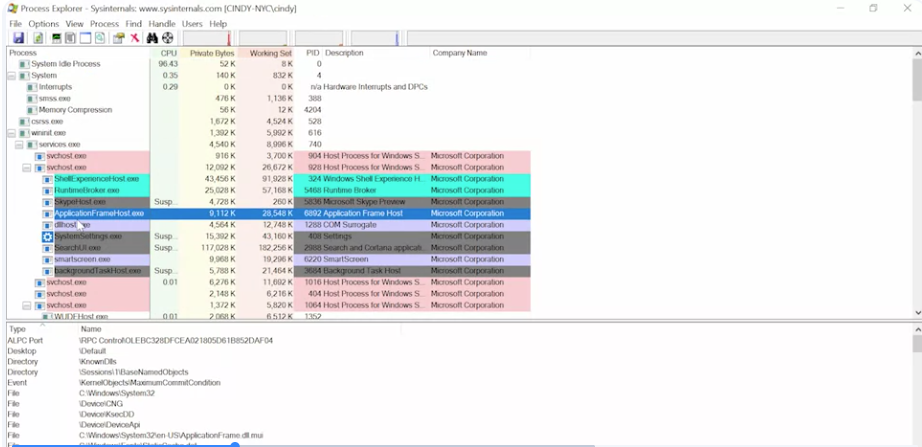 You’ll also see a list of the files a selective process is using in the bottom window pane. This can be super handy if you need to figure out which processes use a certain file or if you want to get insight into exactly what a process is doing and how it works.
You can search for a process easily in Process Explorer by either pressing Control F or clicking on the little binocular button
You’ll also see a list of the files a selective process is using in the bottom window pane. This can be super handy if you need to figure out which processes use a certain file or if you want to get insight into exactly what a process is doing and how it works.
You can search for a process easily in Process Explorer by either pressing Control F or clicking on the little binocular button
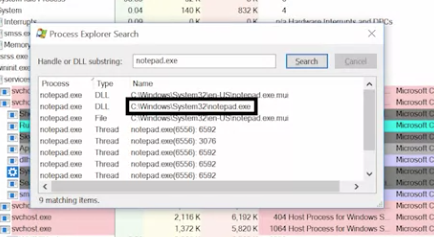
Let’s go ahead and do a search for the notepad process we opened up earlier.
You should see C\Windows\System32\notepad.exe. Listed as one of the search results
 Multilingual user interface: Interface that offers and support different languages
procexp.exe process. = This is the process name for Process Explorer.
For more information about the Process Explorer in Windows, check out the link here.