Linux - Swap
Swap space: The allocated space where the virtual memory is stored on the hard drive when the amount of physical memory space is used up or full
In our case, since we just have a USB drive which doesn’t need swap, we’re just going to partition the rest of it as swap to show you how this works. In practice, you would create swap partitions for your main storage devices like hard drives and SSDs. Okay, let’s mix swap space. First go back into the parted tool and select /dev/sdb where USB is.
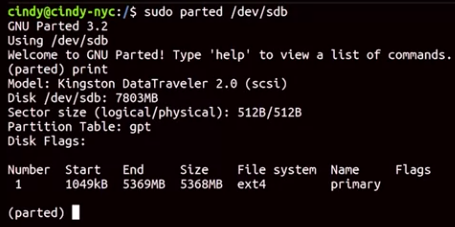 We’re going to partition it again, this time to make a swap partition and then we’ll format the linux-swap file system on it. So make part primary linux-swap 5Gib 100%.
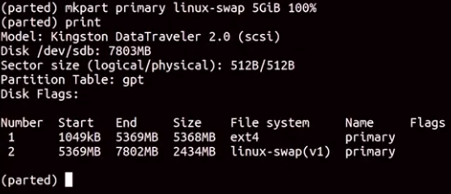 You’ll notice that the endpoint of the drive says 100%. Which indicates that we should use the rest of the free space on our drive.
To complete this process, we need to specify that we want to make it swap space with the make swap command. Let’s quit out of parted and run this command on our new swap partition. So sudo make swap dev and our new swap partition is on dev/sdb2.

Finally, there’s one more commander run to enable swap on the device swapon. So sudo swapon dev/sdb2.
Finally, there’s one more commander run to enable swap on the device swapon. So sudo swapon dev/sdb2.
For more information about swap, please check out the link here