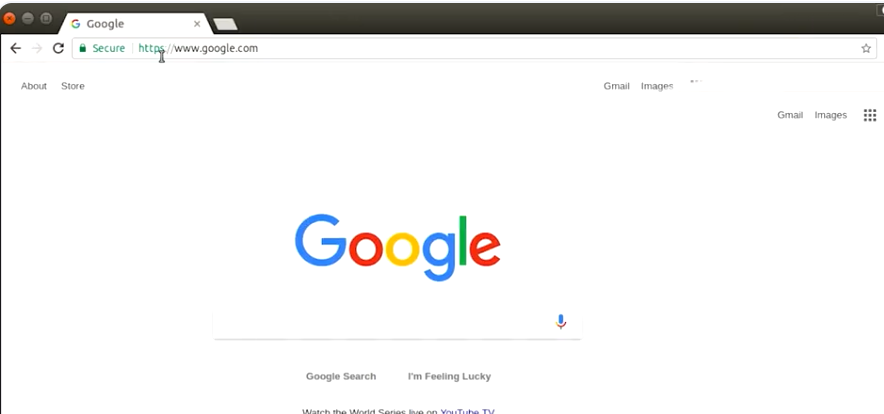
Unable to Resolve a Hostname or Domain Name
-
First up, if you are unable to resolve a domain name, check that your network connection is actually working.
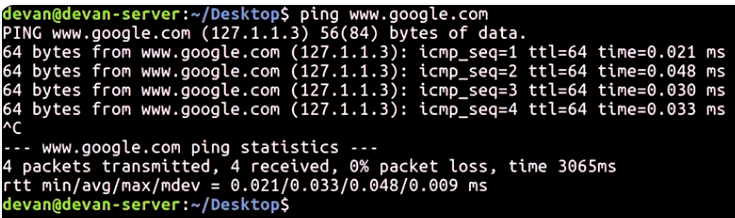
- You can do a quick check and ping a website that you know is available in oldie, but goodie is to ping www.google.com.
- go into my terminal and type in ping, www.google.com.
-
Let’s move on to isolating another problem, DNS. To verify that your DNS server is giving you a correct address for google.com, you can use NS lookup.
- Remember that NS lookup gives us the name server of a host or domain name.
- From here, we can rule out if DNS is an issue by verifying that the hostname points to a name server.
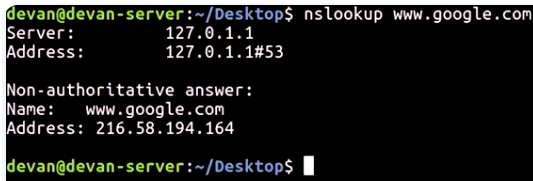
- If we copy the IP address or the results and paste it into the web browser, it should resolve the website name if DNS is working.
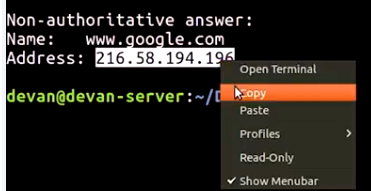
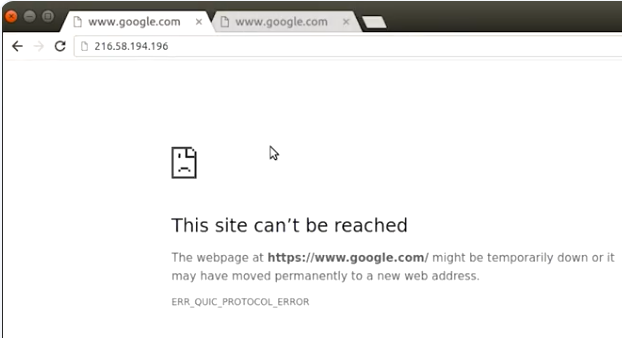
- it’s not working, which means DNS settings aren’t working correctly
- Let’s look at my ping results again. I’m going to go ahead to my terminal and ping www.google.com.
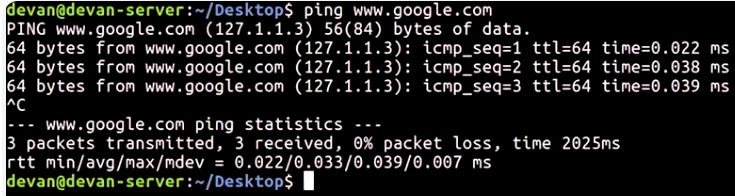
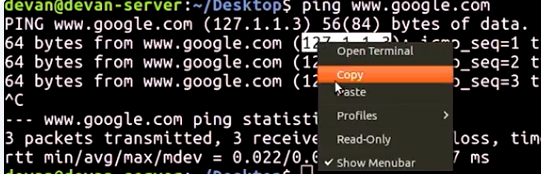
- I see that it checks an IP address different from what I have here. If I go to this IP address, it doesn’t take me anywhere. I’m going to take this IP address, copy this.
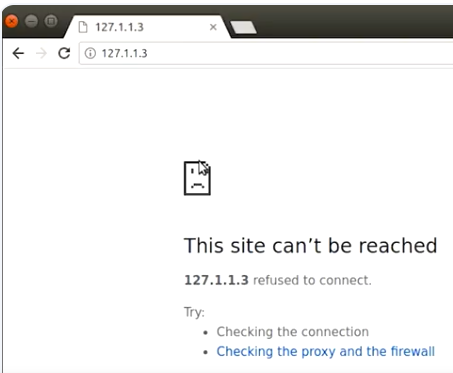
- Remember that when a DNS query is performed, your computer first checks host file. Now, if I access my host file here, I can see that I have an entry for www.google.com, and it points to a fake IP address.
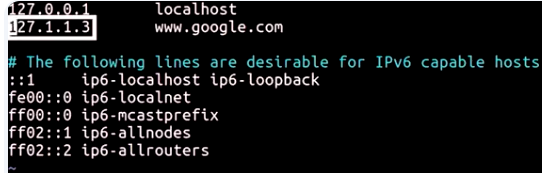
- If I remove this line right here where it says 127.1.1.3, and save that configuration file, and then restart my browser. If I type in www.google.com, here we go. We’re there and the correct DNS setting should be applied to www.google.com