Generate insights from multiple sources with NotebookLM
Have you ever wished you could have a conversation with your documents? Imagine asking questions of a dense report or getting a quick summary of scattered notes. That’s the idea behind NotebookLM, a research assistant and thinking partner that uses generative AI to help you explore your own materials. What separates it from other AI tools is that its answers only rely on the information from sources you provide. In this reading, you’ll explore its main features using a public notebook of Shakespeare’s complete works.
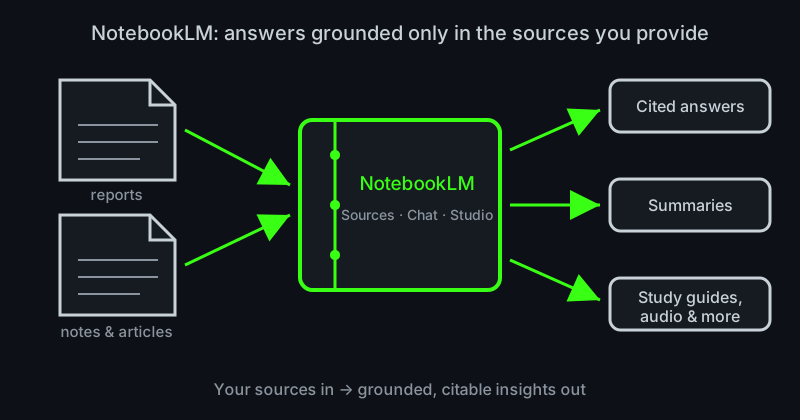
An AI tool with source grounding
The most important feature of NotebookLM is that its responses are grounded only in the sources you provide. This means that when you enter a prompt, NotebookLM searches your uploaded sources to construct an answer and provides clear citations to show you exactly where the information came from. Think of it like an open-book test where the AI is only allowed to use the documents you’ve given it.
This has some key benefits:
-
It makes the tool more predictable. You control the information the AI references based on what resources you choose to include. This makes the AI’s behavior predictable and keeps the focus right where you want it.
-
Fact-checking is simple. NotebookLM’s answers include citations. You can check if the AI’s summary is accurate by revisiting the source material, which helps build trust in the tool’s output.
Explore NotebookLM with Shakespeare
Now it’s time to explore NotebookLM in action. To get familiar with the tool, we are going to use a Notebook that is pre-loaded with the complete plays of William Shakespeare. Inside, you’ll find the notebook consists of three main panels:
-
Sources: This is where you add and manage the materials of a notebook.
-
Chat: This is your primary workspace for interacting with your sources by prompting it with your questions and ideas.
-
Studio: This is where you can transform your sources into new formats like study guides, quizzes, mind maps, videos, and podcasts.
First, get familiar with the Source panel. Click on a source, like “A Midsummer Night’s Dream.” Notice how this displays the full text of the play and an AI-generated overview at the top, giving you a quick summary of the material.
Next, use the Chat panel to prompt NotebookLM about the texts. For example, you could enter a prompt like:
In Romeo and Juliet, what are the main events that lead to the tragic ending?
Notice how the AI-generated response includes citations. Clicking these will show you the exact passages used by the tool to generate its answer. Now, try a prompt on your own! You could ask for a character analysis, a summary of a specific act, or a comparison of two plays.
Finally, explore the Studio panel for examples of how source materials can be transformed into new formats. Check out a few of the artifacts that have been pre-generated for you, like:
-
An audio overview of Shakespeare’s tragedies
-
A video overview of Hamlet
-
A study guide of Macbeth
-
A mind map of Shakespearean themes and characters
Now that you’ve gotten a sense of NotebookLM in action, you’re ready to test it out with your own sources! Get started at notebooklm.google.com.
Wrap-up
NotebookLM is a specialized tool designed to help you analyze, understand, and find new connections within the materials you provide. Unlike a general-purpose AI tool, its responses are grounded only in the sources you select. Whether you’re working with project reports, interview transcripts, or research articles, you can use NotebookLM to turn a collection of documents into an interactive knowledge base—helping you work smarter with the help of AI.
Resources for more information
Check out these resources to learn more about how you can make NotebookLM work for you: